Hello and happy Saturday!! I wanted to share some exciting site updates.
First, I’ve made a new blog category: “projects”! This is a category for talking about any of my creative projects—including this website! I’m still not quite sure how I’m going to end up using categories vs tags on here, but right now I’m trying to use categories for types of posts I’ll make and tags for topics. For example, I might talk about comics in a variety of posts, but I will only talk about comics I’m trying to make under the “projects” category.
Second, and speaking of categories and tags, I added a fancy new tag/category filter to my blog page! Out of the box, most Pelican themes have separate templates for listing all of your categories and tags, so the structure is usually like this:
templates/
    base.html              # My main template (contains most of my actual theme styling)
        ↪blog.html         # Template for viewing all posts (note if you're familiar with Pelican's
                           # default templates: I basically swapped articles.html for blog.html)
        ↪tags.html         # Template for viewing all tags
        ↪tag.html          # Template for viewing all posts under a tag
        ↪categories.html   # Template for viewing all categories
        ↪category.html     # Template for viewing all posts under a category
But I didn’t have an intuitive way of navigating to those
categories.html and tags.html pages on my
blog, so I decided to remove them completely (this is done by setting
some values in the config).
Then, I removed everything from category.html and
tag.html and made them extend
my blog.html page, so I had this structure instead:
templates/
    base.html
        ↪blog.html
            ↪tag.html
            ↪category.html
    # No more categories.html or tags.html
And category.html and tag.html now just
consist of {% extends "blog.html" %}, and that
blog.html template does all the heavy lifting for listing
the categories/tags. The post filters are hidden in a toggleable section
(which, by the way, is CSS only!!! I’m not allergic to JavaScript, but I
think trying to use only HTML and CSS is a fun challenge) and this
section has some conditional styling to improve the user experience
while browsing tags and categories. For example, when you first visit
the blog page, the filters section will be closed, but if you’re looking
at one of the tag pages (example) the
section will be open when the page renders, since you had it open when
you selected the tag on the previous page! The tag or category you’re
looking at will also be highlighted in a different color.
(This code is a little messy ^^’ but I wanted to share)
<details {% if category or tag %}open{% endif %}>
    <summary>View post filters</summary>

    <div class="category-label">Category</div>
    <div class="category-list">
        <ul>
        {% for category_item, articles in categories|sort %}
        <li><a {% if category_item==category %}class="selected"{% endif %} href="{{ SITEURL }}/{% if category_item==category %}blog{% else %}{{ category_item.url }}{% endif %}">{{ category_item|lower }}</a></li>
        {% endfor %}
        </ul>
    </div>

    <div class="tag-label">Tag</div>
    <div class="tag-list">
        <ul>
        {% for tag_item, articles in tags|sort %}
        <li><a {% if tag_item==tag %}class="selected"{% endif %} href="{{ SITEURL }}/{% if tag_item==tag %}blog{% else %}{{ tag_item.url }}{% endif %}">{{ tag_item|lower }}</a></li>
        {% endfor %}
        </ul>
    </div>
</details>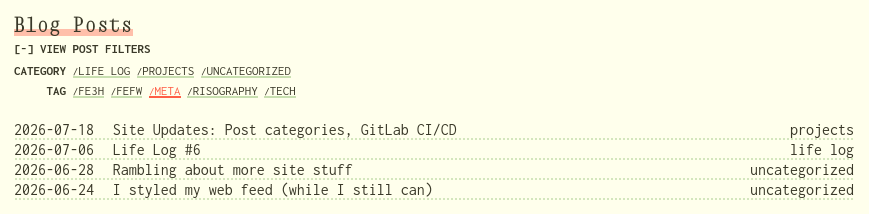
There are some minor things I need to fix, but I’m really happy with how it turned out!!
And last but not least, I can now update this site via GitLab CI/CD!!! This is kinda
overkill, but I thought it would be fun to learn and it’s free. This is
my .gitlab-ci.yml file:
variables:
  # https://docs.astral.sh/uv/guides/integration/gitlab/
  UV_VERSION: "0.11.29"
  PYTHON_VERSION: "3.12"
  BASE_LAYER: trixie
  # GitLab CI creates a separate mountpoint for the build directory,
  # so we need to copy instead of using hard links.
  UV_LINK_MODE: copy

build-site:
  stage: build
  image: ghcr.io/astral-sh/uv:$UV_VERSION-python$PYTHON_VERSION-$BASE_LAYER
  before_script:
    - apt-get update -y
    - apt-get install pandoc -y
    - pandoc --version
    - uv sync
  script:
    - echo "Building the $CI_COMMIT_SHORT_SHA commit SHA (started $CI_JOB_STARTED_AT)."
    - uv run pelican -s publishconf.py
    - find output -type f -name "*.html" -exec sed -i 's/—/<span class="emdash">—<\/span>/g' {} \;
  artifacts:
    paths:
      - output/

publish-to-neocities:
  stage: deploy
  rules:
    - if: $CI_COMMIT_BRANCH == $CI_DEFAULT_BRANCH
  before_script:
    - gem install neocities
  script:
    - echo "Deploying the $CI_COMMIT_SHORT_SHA commit SHA (started $CI_JOB_STARTED_AT)."
    - neocities push output
  environment: production
build-site uses uv to install the dependencies and
generate the site (this stage also has to install Pandoc for converting
my Markdown files to HTML). The generated output/ directory
is carried over to the publish-to-neocities stage, which
just uses the regular Neocities
CLI to publish to Neocities! This stage only runs on my
main branch, so if I’m experimenting with changes on other
Git branches, those changes won’t be publishes to Neocities if they’re
accidentally pushed. To use the Neocities CLI in your pipeline, you’ll
want to add your Neocities API key
(/settings/$YOUR_SITE_NAME#api_key on the Neocities
website) to your project variables under the key
NEOCITIES_API_KEY.
(Quick sidebar on the
find output -type f -name "*.html" -exec sed -i 's/—/<span class="emdash">—<\/span>/g' {} \;
script in that file: I use this to wrap every em dash on my
site with a span element that changes it to a different font. I do this
because I hate the way em dashes look in a monospace font lmao. It’s
kind of silly but it works! And look—here’s one now—and another one—and
another one)
And that’s all for now!! I’m running late for something so I gotta end this post immediately BYE
(EDIT: Okay I take back GitLab CI/CD being overkill because I just realized I can now make changes to my website FROM MY PHONE, which is how I made this edit. It’s a little clunky so I won’t use it for major updates, but I can use it for quick updates or corrections when I’m away from my desktop PC. Cool!!)